
DEPGI Laptop Cooling Pad, Laptop Cooler Stand with 5.5″ Movable Fan Easy to Clean, 10 RGB Light Modes, Auto Temp Sensor & 3-Speed Manual Control, Ultra Quiet ≤40dB for 14–17.3 Inch Laptops





Price: $35.99
(as of Jul 25, 2026 09:38:51 UTC – Details)

Product description


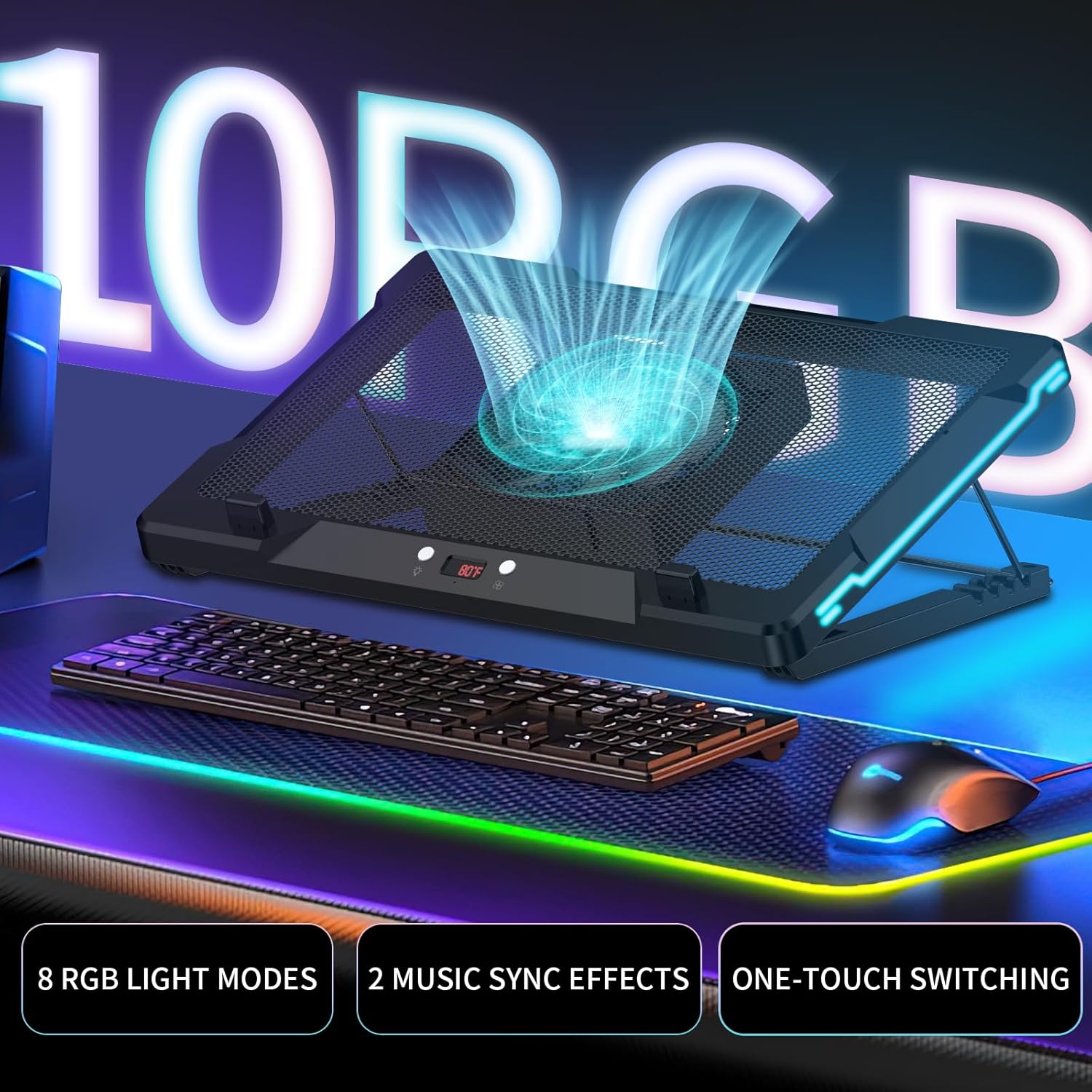
Immersive Lighting: Total Control & Sound Sync  Left Button: Easy Light Modes
Short Press: ON → Cycle Levels → OFF.
Long Press: Toggles Sound (R1) / Manual (LEd) modes.
Sound Mode: L1 (normal), L2 (high sensitivity).
Manual Mode: 8 settings: C1-4 solid, C5-8 dynamic effects.
 Sound Mode: Lights Dance
Sound Mode (R1): Lights change with ambient sound.
L1 Sensitivity: Responds to louder sounds.
L2 Sensitivity: Responds to even soft sounds.
Atmosphere: Vibrant audio-visuals synced to music/environment
Intelligent Fan Control for Personalized Comfort  Right Button: Smart Fan Control
Short Press (Manual): ON → Speeds → OFF.
Long Press: Switches Auto (AU) / Manual (AA) modes.
Auto (AU): Speed by temp (27-29, 30-32, 33°C+).
Manual (AA): 3 speeds: A1 (low) → A2 (med) → A3 (high)
 Smart Cooling: Auto & Manual
Auto (AU): Hands-free cooling! Speed auto-adjusts by temp.
Indicator: AU. Temp Tiers: 79–84°F, 86–90°F, 91°F+.
Manual (AA): Between your control! Set A1-A3 speeds for comfort.

My Laptop Cooling Pad isn’t spinning when plugged in. Is it faulty?
Not at all! The fans on your Laptop Cooling Pad automatically activate only when the temperature reaches the starting threshold of 79°F (26°C). You can long press the Right Button to switch to Manual Fan Mode for immediate control.
How does Sound Mode work on this Laptop Cooler Stand? Sensitivity levels?
In Sound Mode (R1), lights react to ambient sound. L1 responds to louder sounds, while L2 is highly sensitive, reacting even to soft sounds. This creates a dynamic audio-visual atmosphere synced with your music or environment.
How do I operate the fan on this Laptop Cooling Pad & switch modes?
In Manual Mode, short press the Right Button for ON, to cycle speeds, or OFF. Long press it to switch between Auto Temp Mode (AU indicator), where speed adjusts to temperature, and Manual Mode (AA indicator) for direct speed control.
What is Auto Temp Mode for the Laptop Cooler Stand’s fan? How does it adjust?
Auto Temp Mode (AU indicator) offers hands-free cooling. The fan speed automatically adjusts based on real-time temperature across pre-set tiers (e.g., 79-84°F, 86-90°F, 91°F+), ensuring optimal comfort without manual intervention.
Can I manually set light effects & fan speeds on my Laptop Cooling Pad?
Yes. For lights, Manual Mode (LEd) provides 8 settings: C1-C4 for solid colors and C5-C8 for mixed dynamic effects. For the fan, Manual Mode (AA) offers 3 speed levels: A1 (low), A2 (medium), and A3 (high).
TARGETED COOLING WITH 5.5″ MOVABLE FAN: Unlike traditional laptop cooling pads, this laptop cooler features a large 5.5-inch movable fan that slides freely to align with your laptop’s heat vents. Direct airflow exactly where heat builds up for faster, more efficient cooling, helping improve performance during gaming, work, or creative tasks.
10 DYNAMIC RGB LIGHTING EFFECTS: Enhance your gaming setup with 8 vibrant RGB lighting modes and 2 music-sync effects that react to sound. This gaming laptop cooling pad creates an immersive atmosphere for gaming, streaming, or entertainment while adding a modern look to your desk.
SMART AUTO & 3-LEVEL MANUAL FAN CONTROL: Equipped with a built-in temperature sensor, this laptop cooling fan automatically adjusts fan speed based on your laptop’s temperature for optimal cooling and energy efficiency. Prefer full control? Easily switch to Manual Mode and choose from 3 fan speed levels.
POWERFUL YET ULTRA-QUIET COOLING: Designed for maximum comfort, this laptop cooling stand operates at a noise level of ≤40dB, providing powerful airflow while remaining whisper quiet. Perfect for gaming, online meetings, studying, editing videos, or working late without unwanted fan noise.
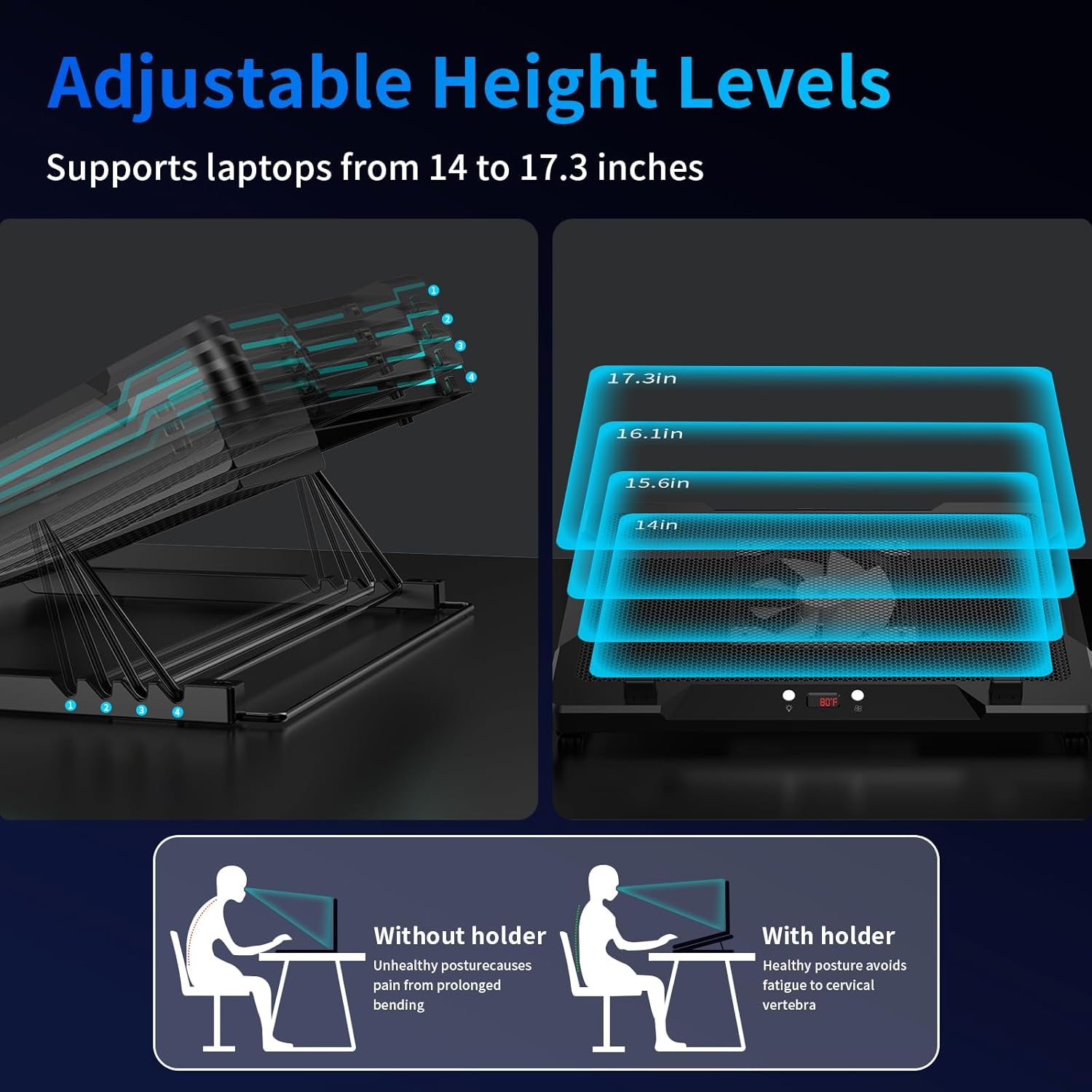
ERGONOMIC DESIGN & UNIVERSAL COMPATIBILITY: This adjustable laptop cooling pad offers multiple height settings to improve typing comfort and help reduce neck and wrist strain. Compatible with most 14 to 17.3-inch laptops, including gaming laptops, MacBook, etc.


